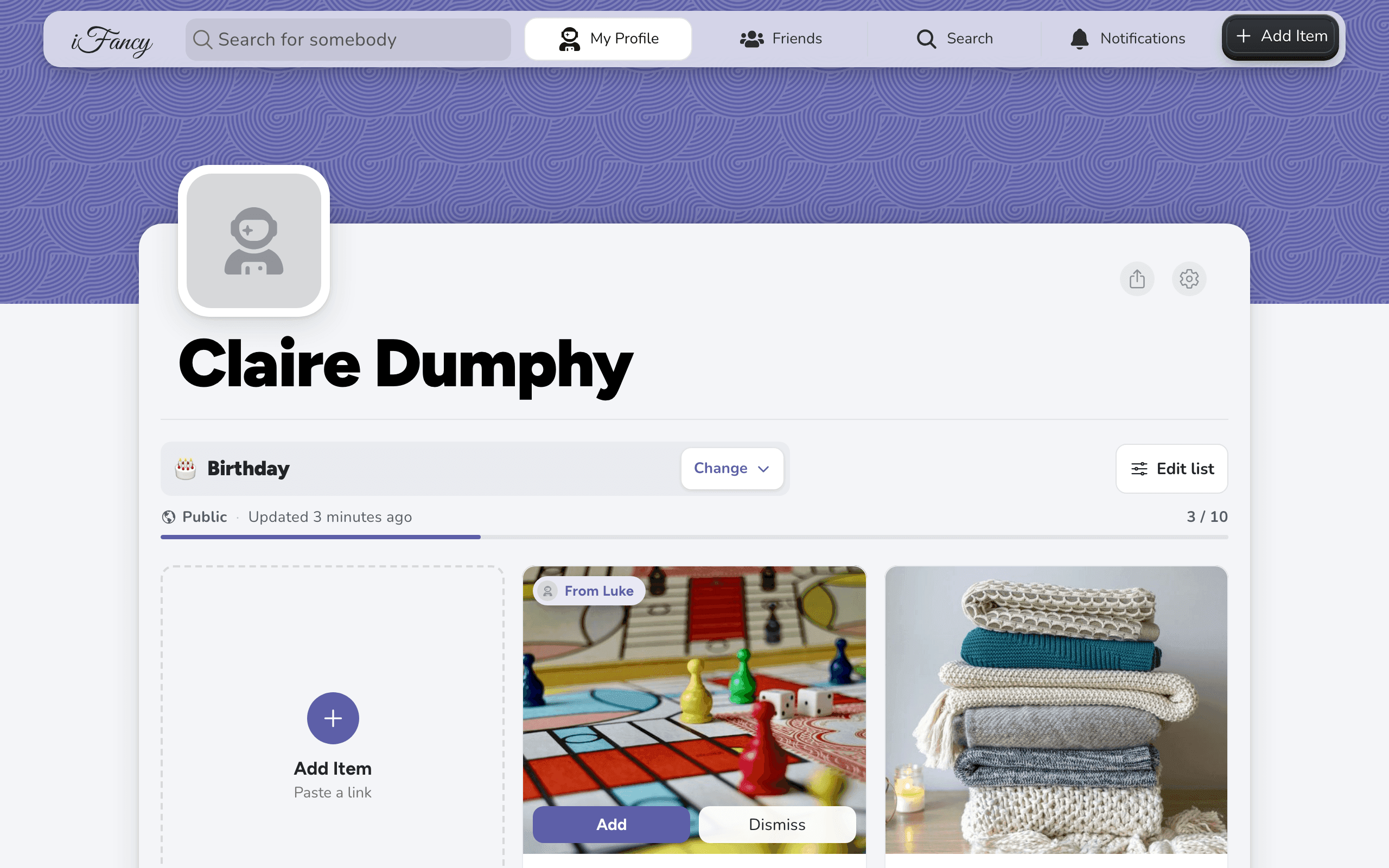
Hide an item from specific people
Each item can be visible to everyone who can see the list, only to people you pick, or only to you and anyone you share the list with. Choosing "Some people" is how you keep one item off one person's screen.
How to do it
On your profile, click the item.
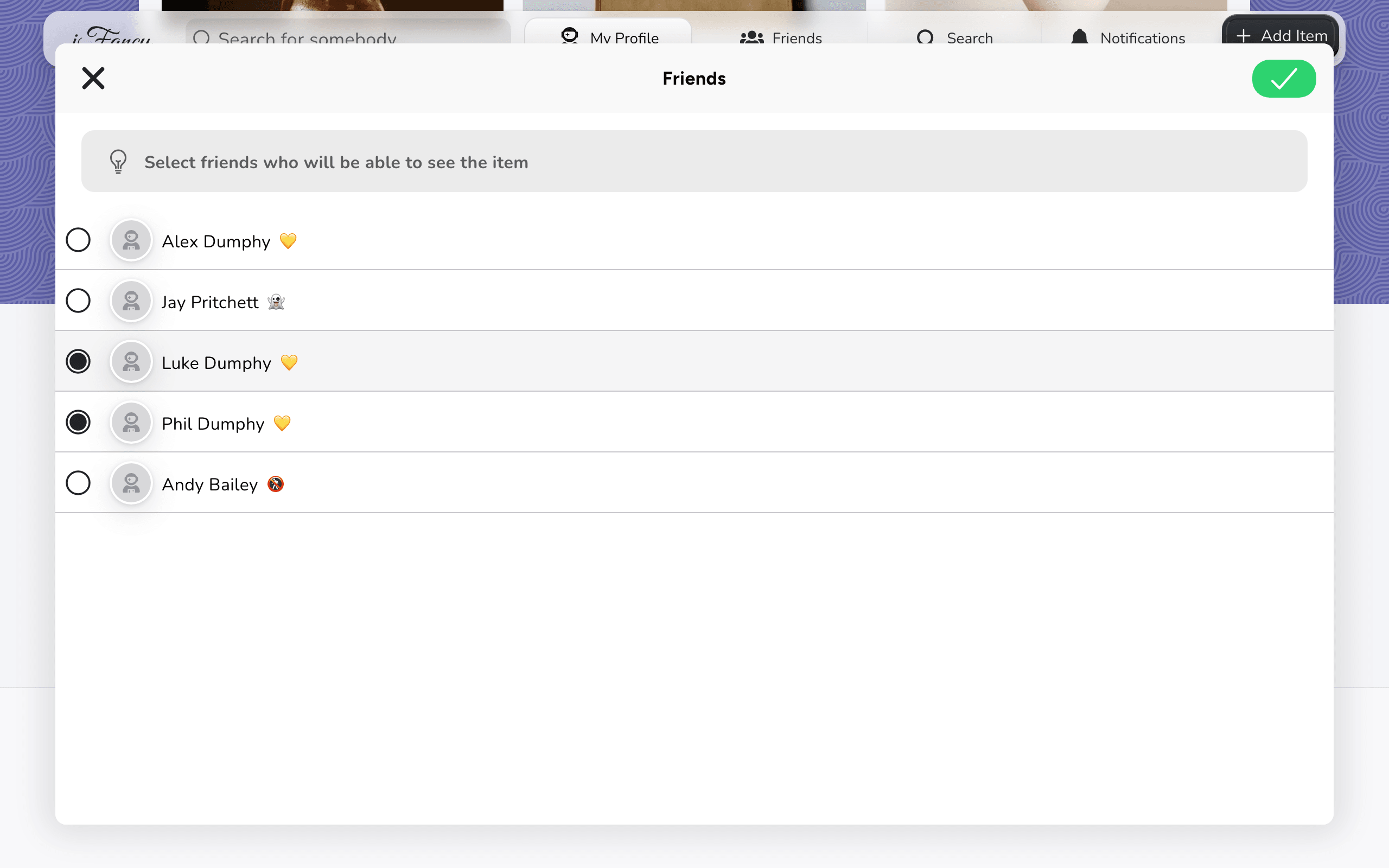
Under Who can see this, click Some people, then tick the people who should see it. Click the checkmark at the top right to keep your pick.
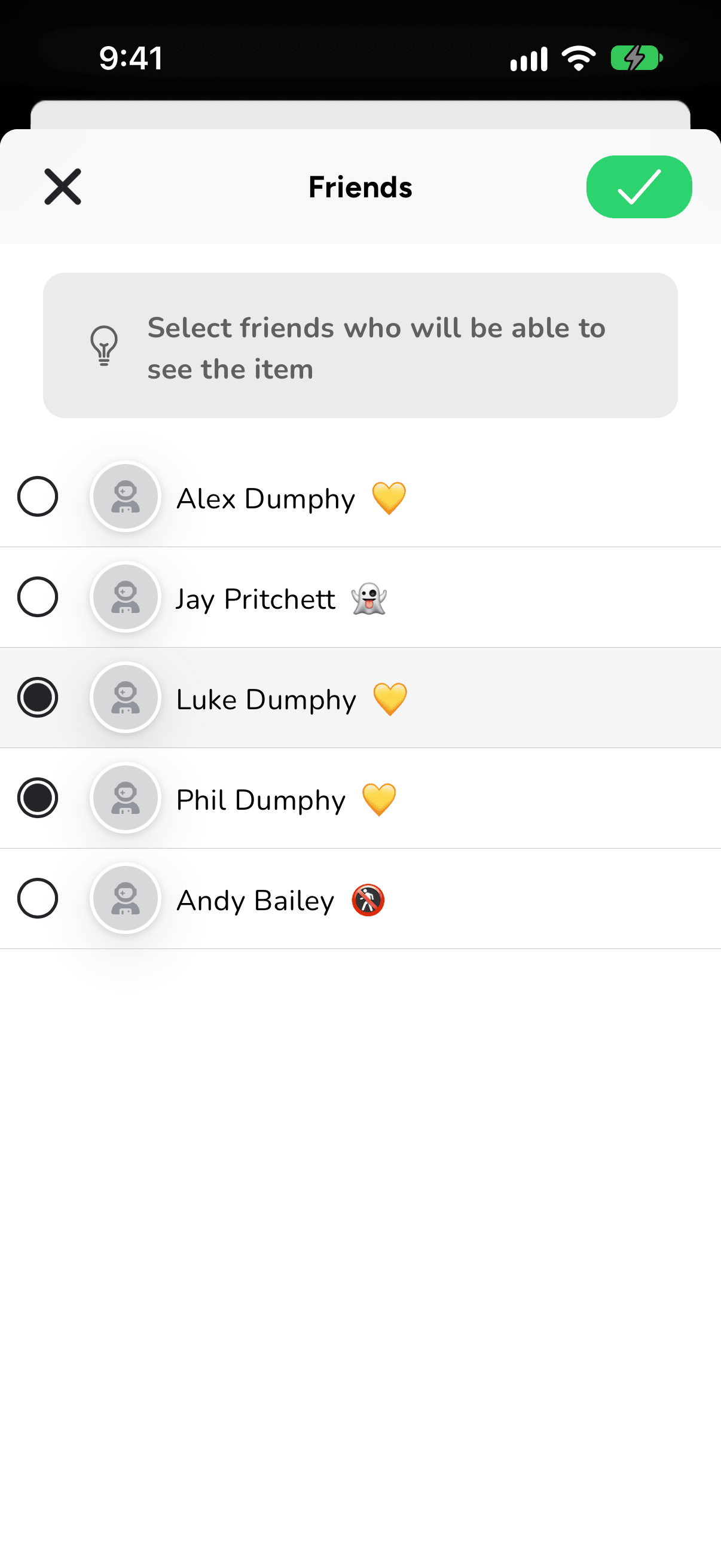
The X at the top left closes the picker without changing anything.
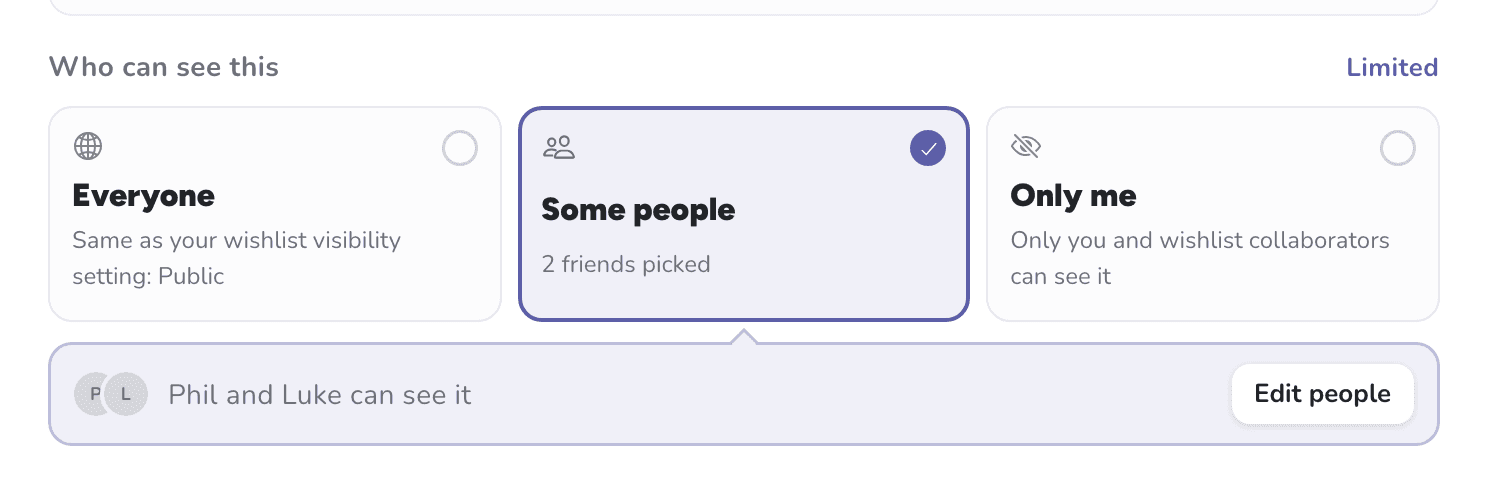
Check the line under the cards, then click Save changes.
On your profile, tap the item.
Under Who can see this, tap Some people, then tick the people who should see it. Tap the checkmark at the top right to keep your pick.
Check the line under the cards, then tap Save changes.
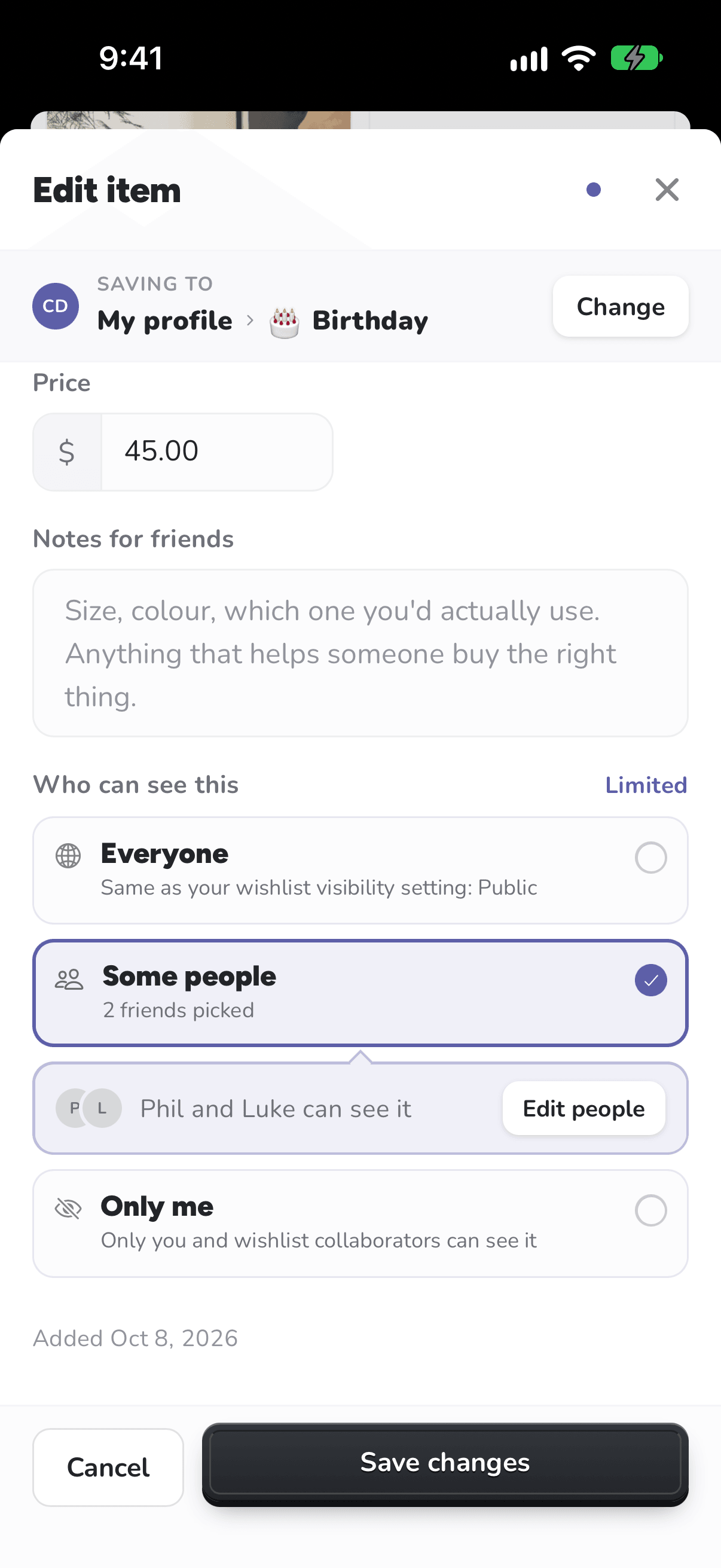
The three choices
- Everyone: whoever can see the list sees the item. It follows the list's own visibility.
- Some people: only the people you pick, from those you follow and those who follow you. To change them later, use Edit people.
- Only me: only you, and anyone you've built the list with.
People you hide an item from see the rest of your list as usual. Nothing on it says an item is missing.