
Add an item from a link
Copy the product's link from any shop and paste it into iFancy. The photo, name and price fill in on their own.
How to do it
On the shop's site, copy the product page's address from the address bar.
In iFancy, click Add Item at the top right, or the Add Item tile at the start of your list.
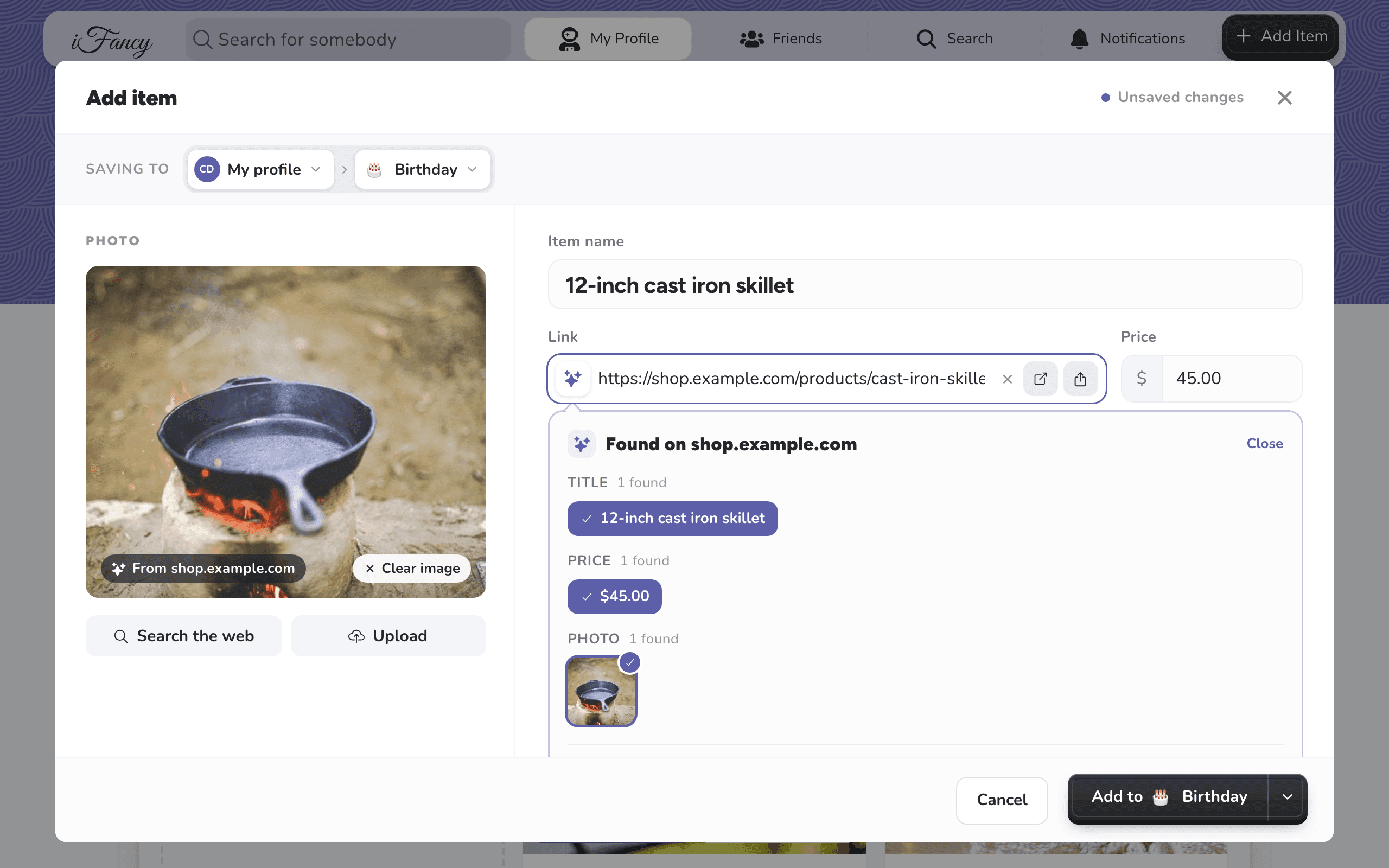
Paste the link into Link and click Fetch Data. Check the name, price and photo, then click Add to your list.
Click a different title, price or photo in the box under the link to use it instead.
In Safari or the shop's app, copy the product's link (tap Share, then Copy).
In iFancy, tap + at the bottom right.
Tap Paste in the Link field, then Fetch Data. Check the name, price and photo, then tap Add to your list.
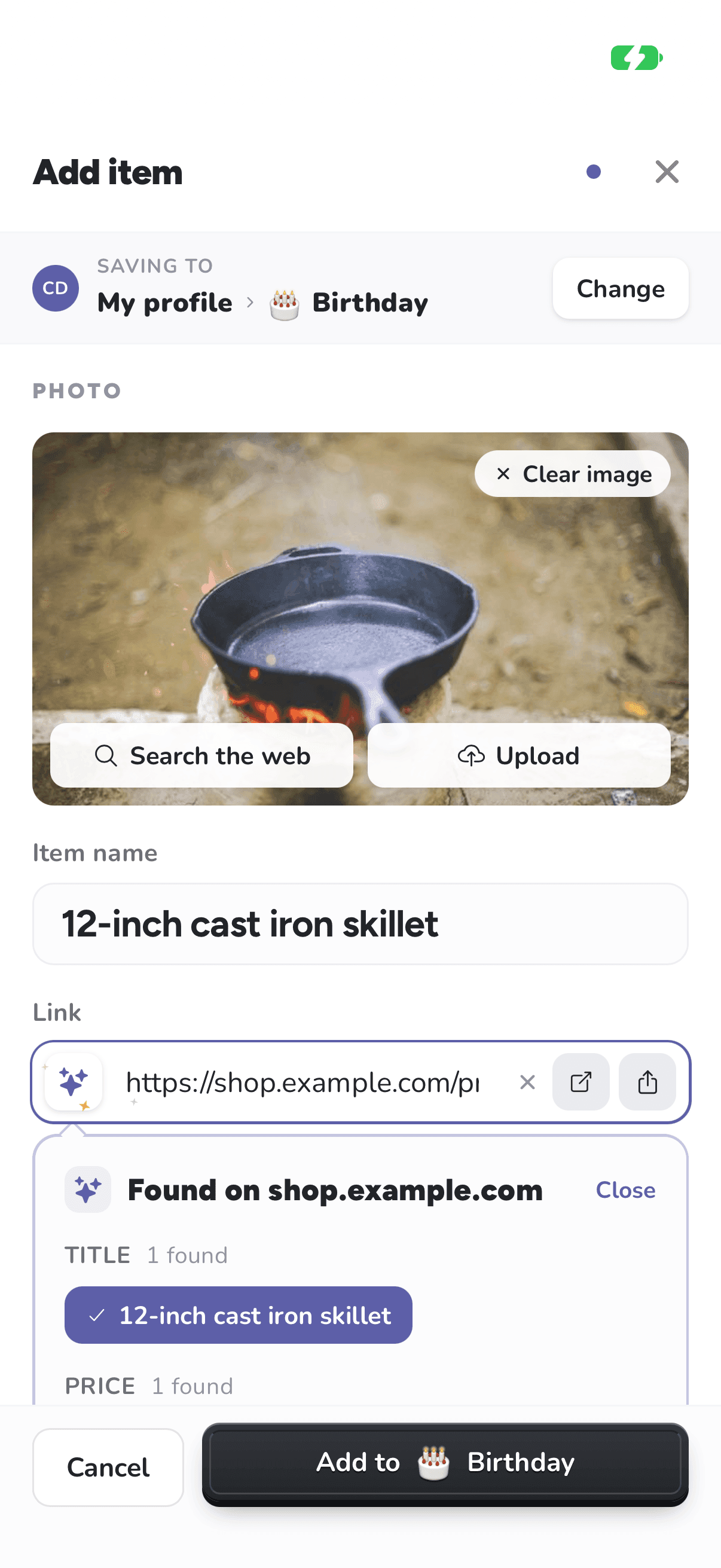
Saving to, at the top of the window, shows which list the item goes on. Choose Change there to pick another.