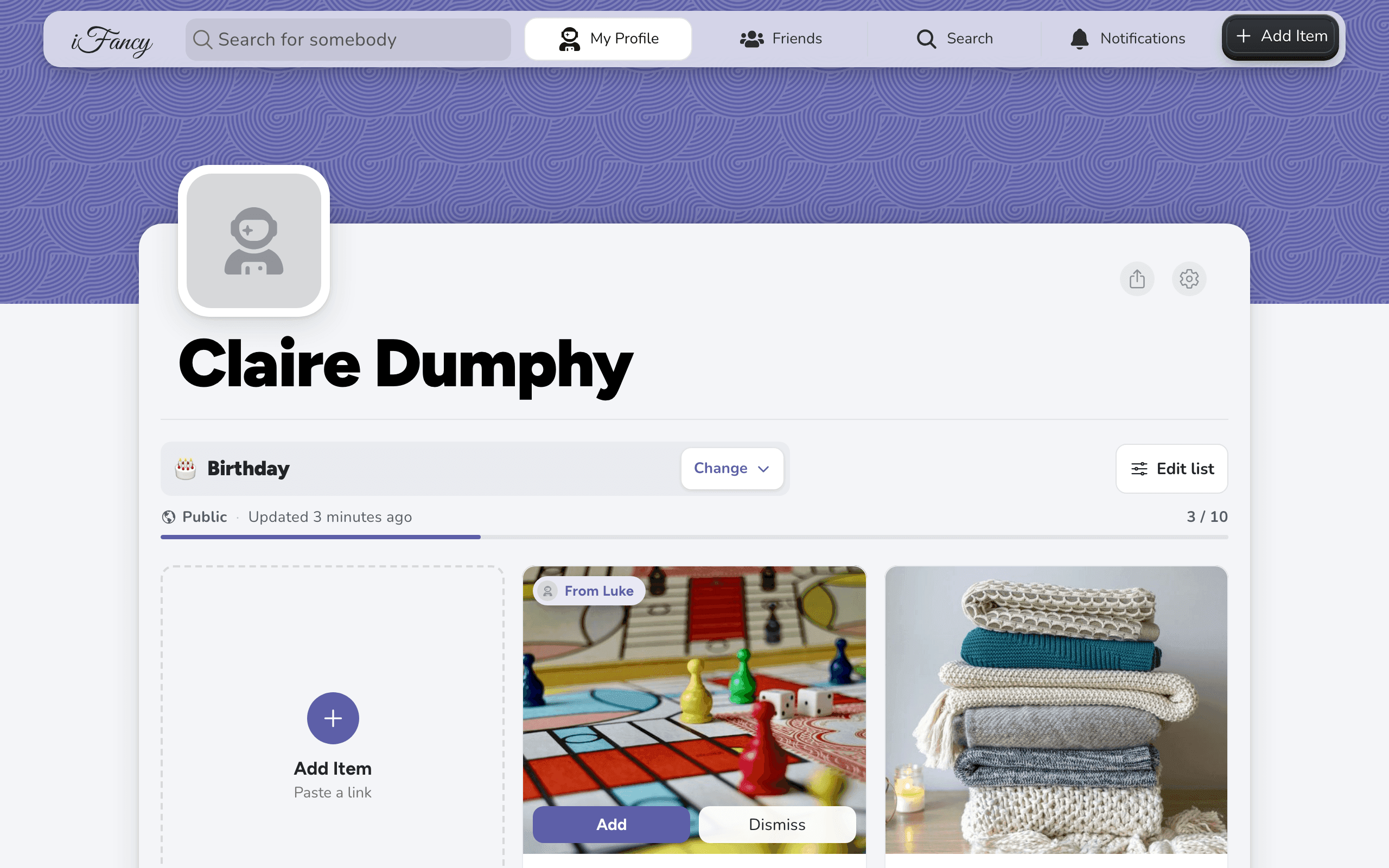
Build a wishlist together
Invite a mutual friend to one of your lists and, once they accept, you can both add and edit its items. You still decide who can see the list and who's on it.
How to do it
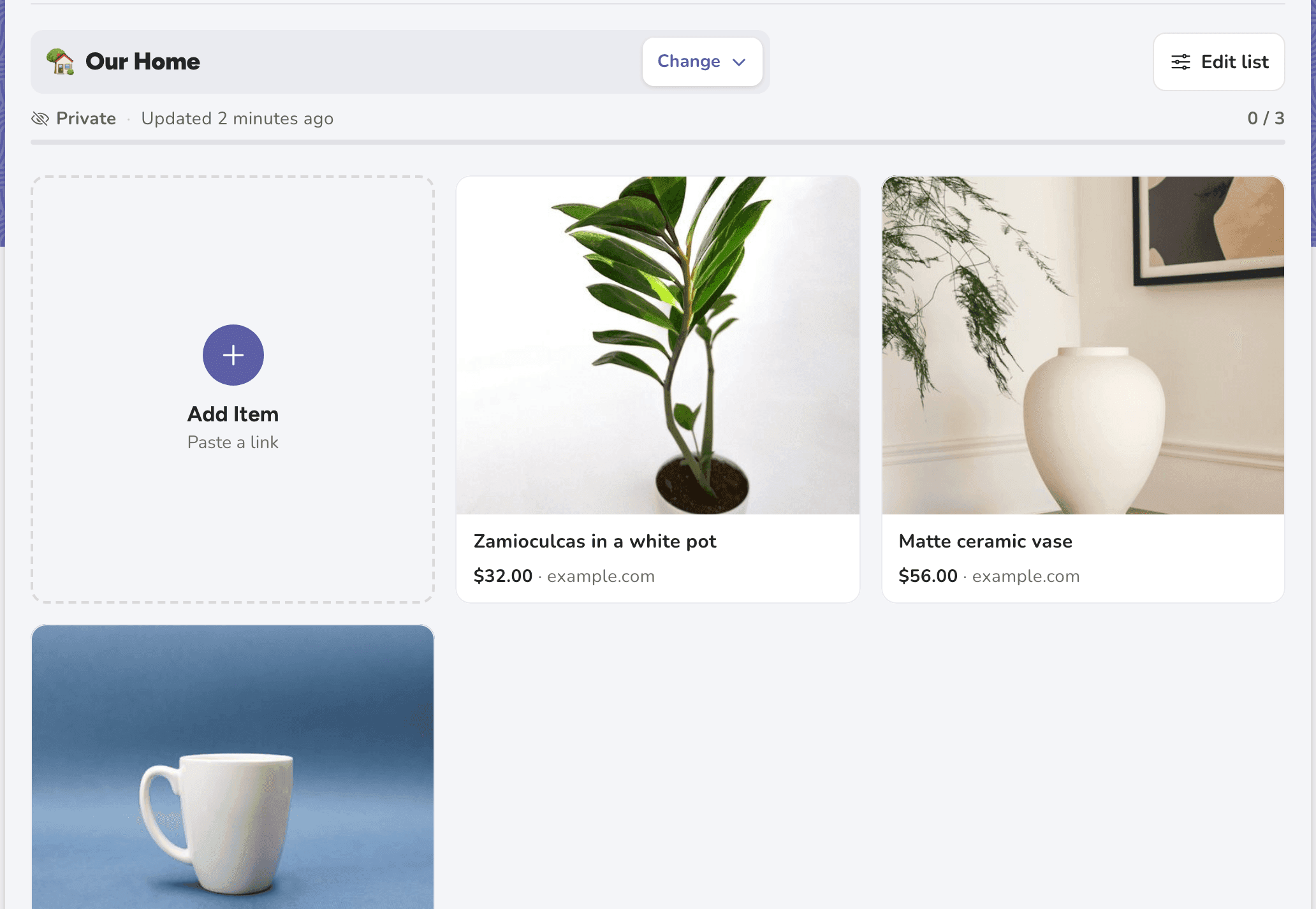
On your profile, open the list, then click Edit list and Rename & privacy.
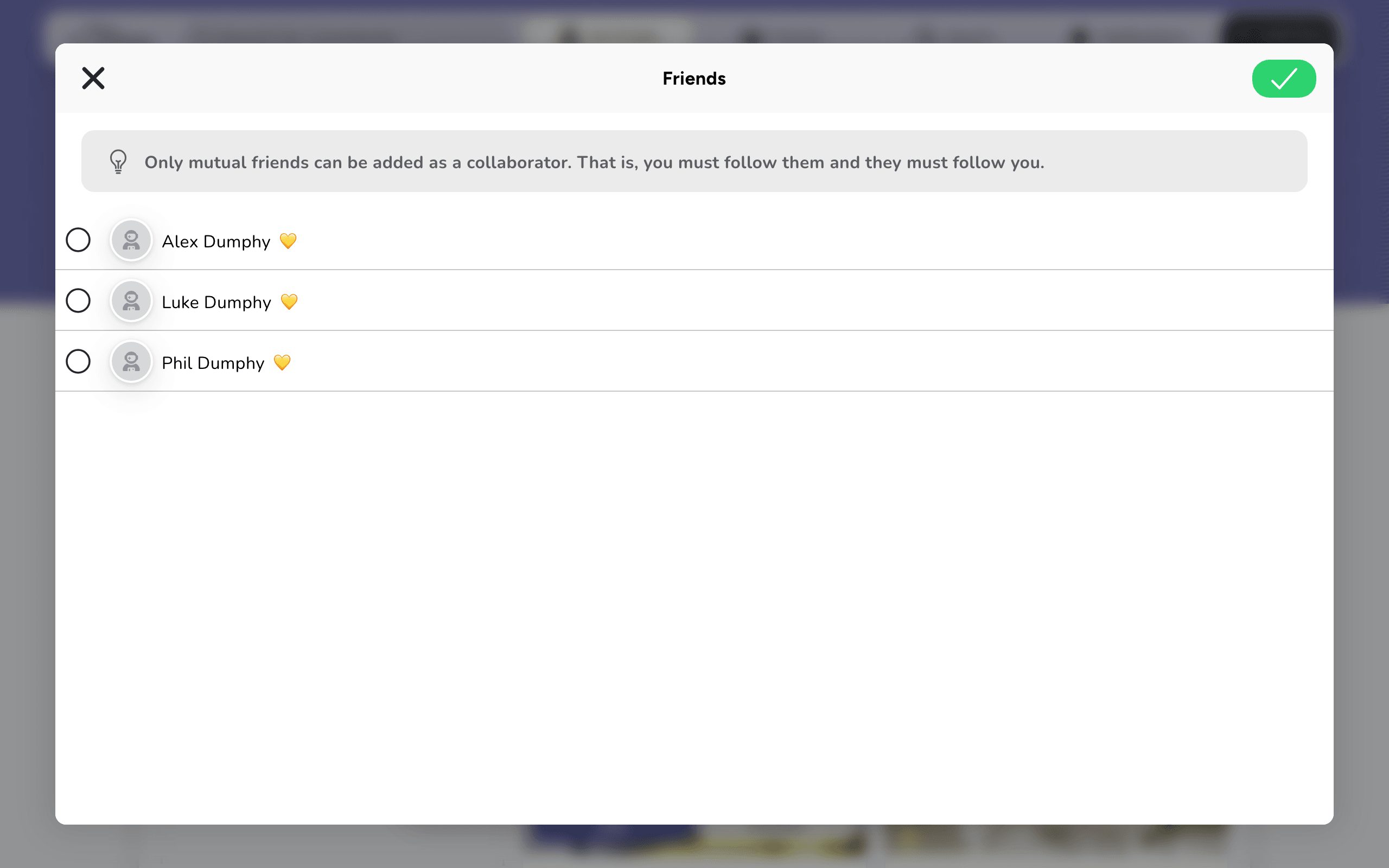
Next to Collaborators, click Select, tick the people to invite, and click the checkmark at the top right. Then click Save.
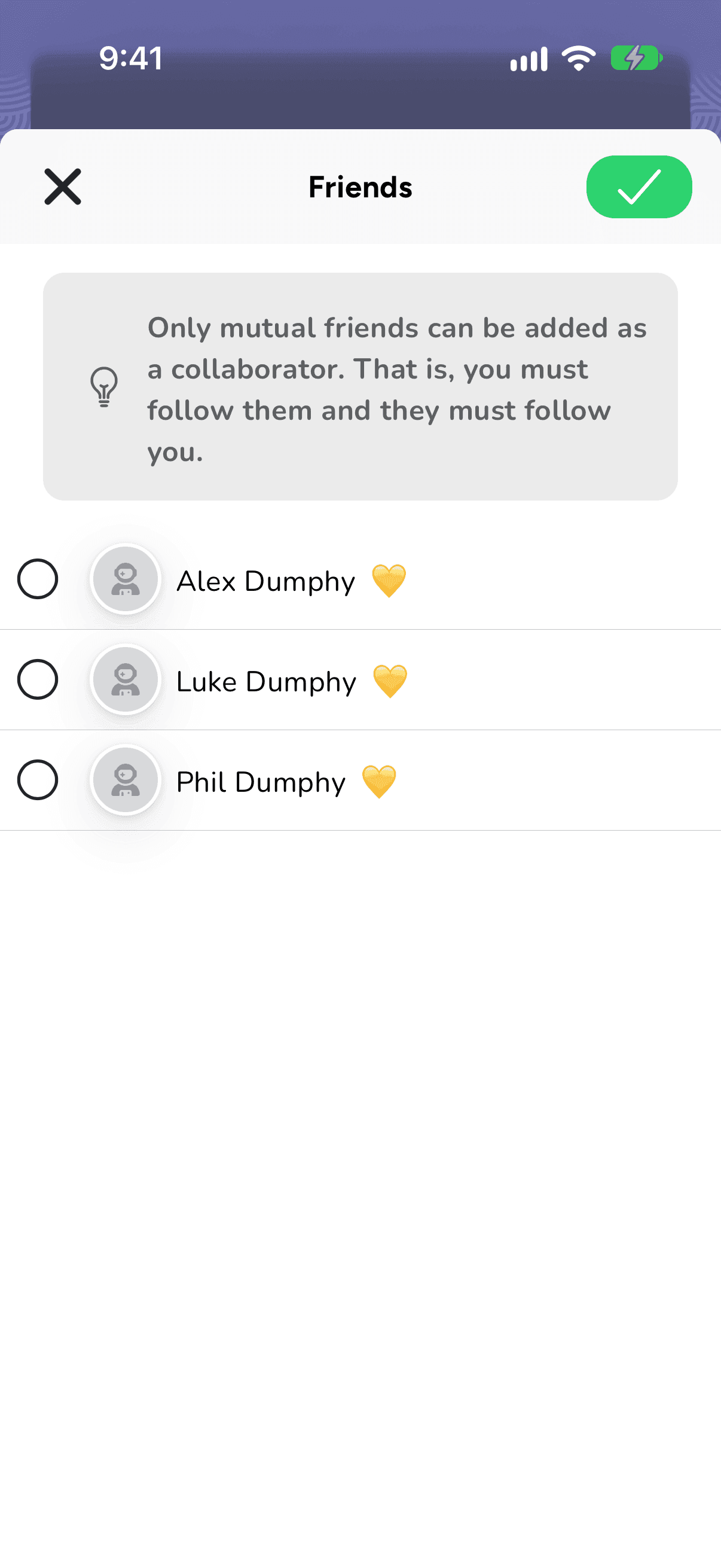
Only mutual friends can be picked: you've added each other.
They get an invite under Notifications to Accept or Decline. Once they accept, the list is in their own list menu, under Shared with you, to add to as well.
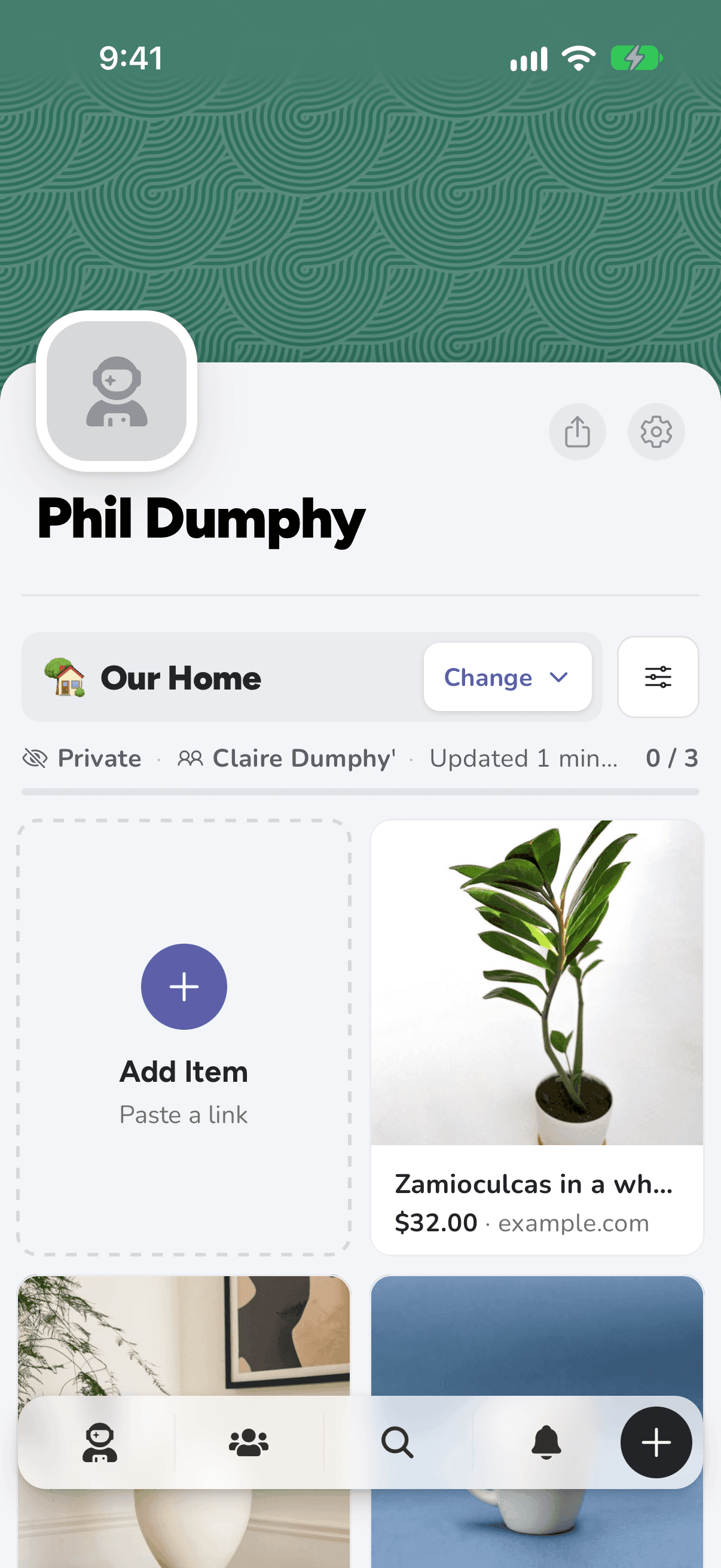
On your profile, open the list, then tap the sliders button at the end of its name and Rename & privacy.
Next to Collaborators, tap Select, tick the people to invite, and tap the checkmark at the top right. Then tap Save.
They get an invite under Notifications to Accept or Decline. Once they accept, the list is in their own list menu, under Shared with you, to add to as well.
Who can do what
- Everyone on the list: add, edit and delete items, rename the list or change its icon, and reorder it. Someone you've invited can leave with Leave Wishlist.
- Only you, the owner: who can see it, Show in Google, who's on it, and deleting it.
Good to know: Everyone on a shared list keeps the surprise: none of you see what's been bought from it until each buyer's reveal date, or ever, for a purchase with no reveal date.